New Windows VM
This app is used to deploy a new Windows machine in VMware
Configure up to 4 aditional disks, with assignment of driveletter, lable and blocksize.
Configure up to 4 nics, configuredd and ready to use.
ServiceNow
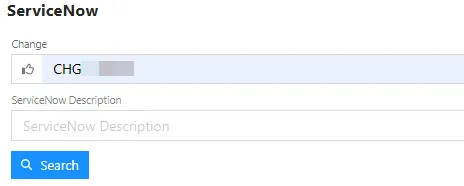
Section titled “ServiceNow”Type in Change/Inciden number and hit Search.
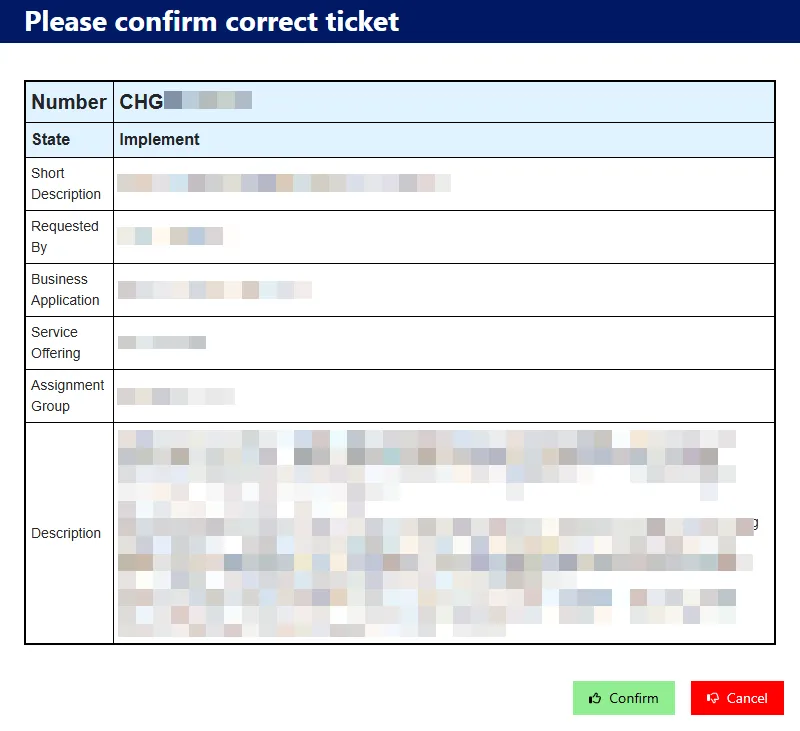
Confirm the information is correct.
The Change must be in the state “Implement” or Inciden is in state “In Progress” to continue.
Press Confirm
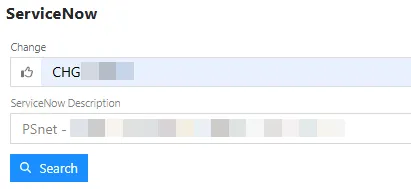
The ServiceNow Description will now be showen under the Change/Incident Number.
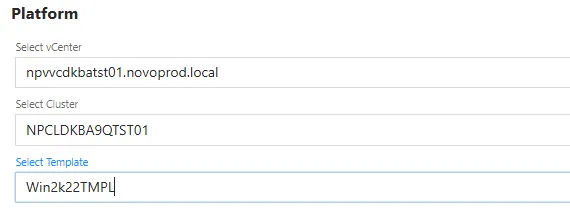
Platform
Section titled “Platform”Select the vCenter, Cluster and template in the dropdown menu’s.
VM Settings
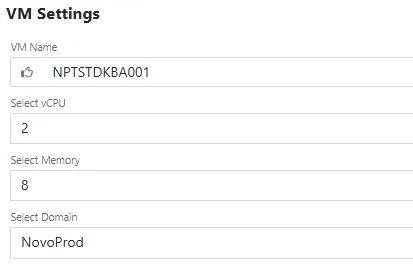
Section titled “VM Settings”Name the VM, and configure sizing and select domain.
Network Adapters
Section titled “Network Adapters”Primary adapter is the default adapter, used for joining the domain and default traffic.
Subnet and Gateway is automatically filled, but can be modifyed.\
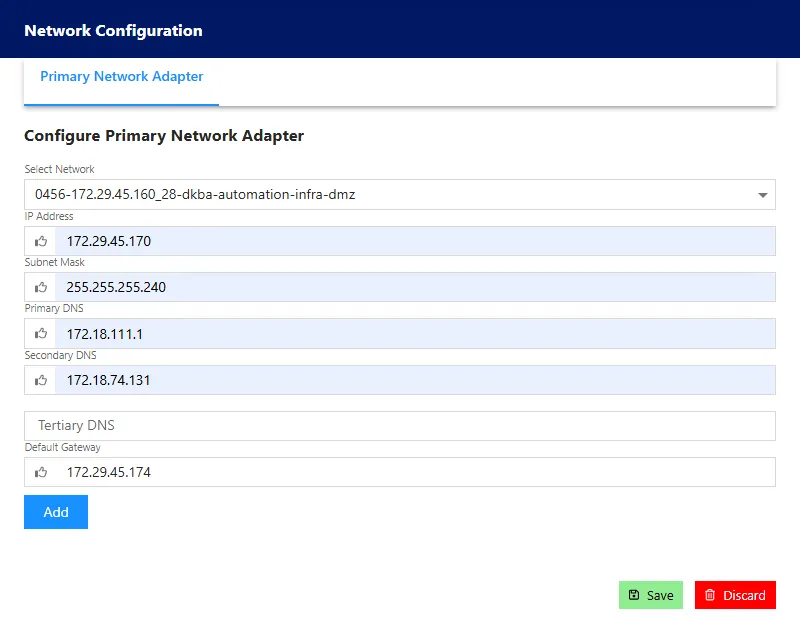
When selecting the network and typing the IP, a check is performed to confirm vLan tag mathces the vLan defined on the subnet.\


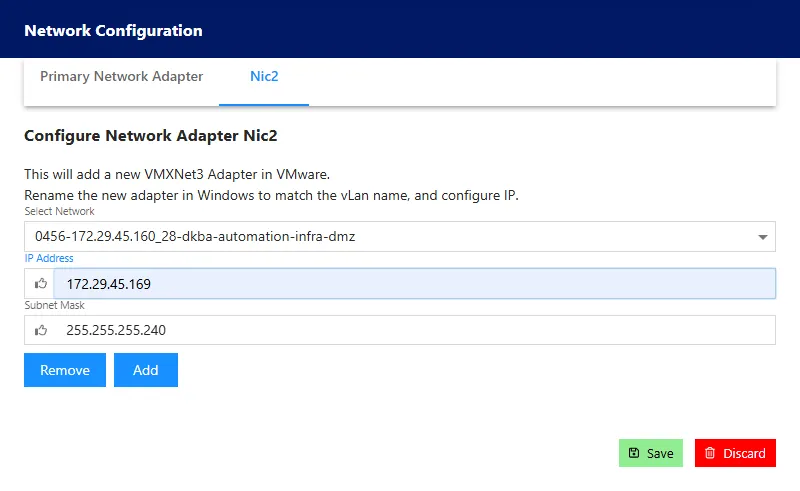
3 Aditional Network Adapters can be added.
Same vLan check as primary adapter, and Subnet is automatically filled.
Extend the default disks, this will be done during deployment.
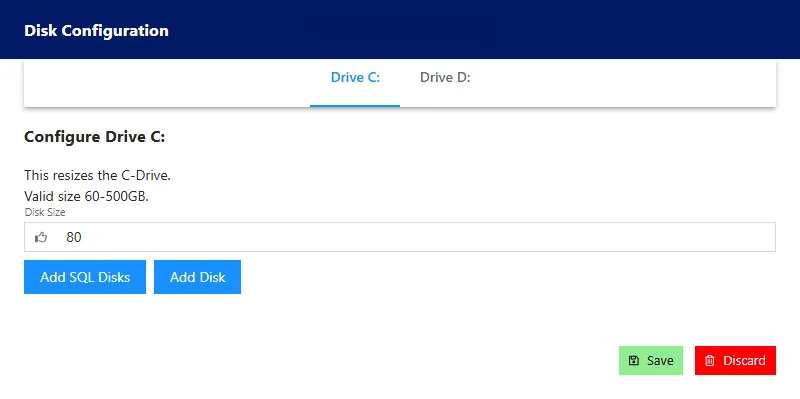
Adding additional disks up to 4.
Configure all displayed settings.
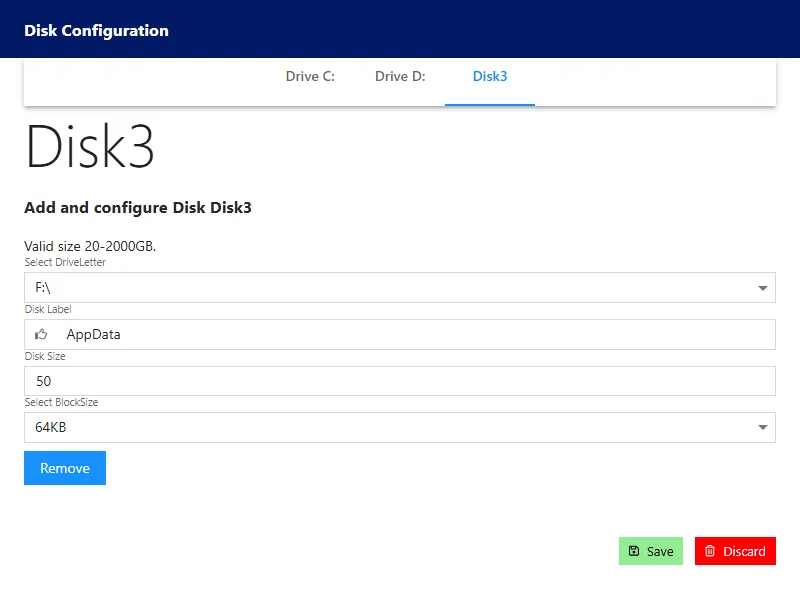
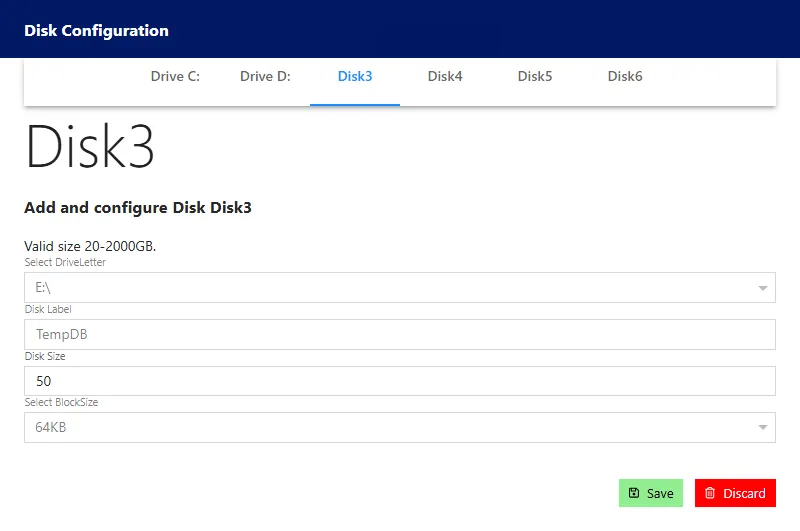
Adding SQL disks
Preconfigured to add 4 disks, size is the only setting to modify.
Deployment
Section titled “Deployment”Review and confirm the parameters.
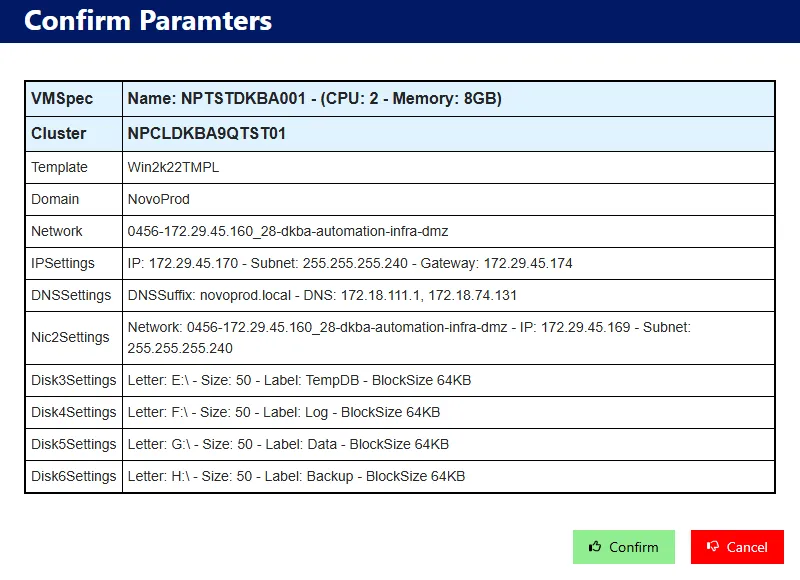
Once deployment is started, close the window and request additional servers.
