Physical Server Deployment
This app is used to install a Operation system on a physical server Supported servers : “Dell Server Hardware” Supported Operation systems : VMWare Esxi 8.x / 9.x (Dell vendor specific)
Firewall Requirements
Section titled “Firewall Requirements”This deployment will use IPMI Network for the deployment, to use this 2 ports need to be open
- From “Deployment Server IPaddress” -> Port 443 TCP to the “IPMI IP address”
- From “IPMI IP address” -> Port 80 TCP to the “Deployment Server IPaddress”
How to Start a Physical Server Deployment
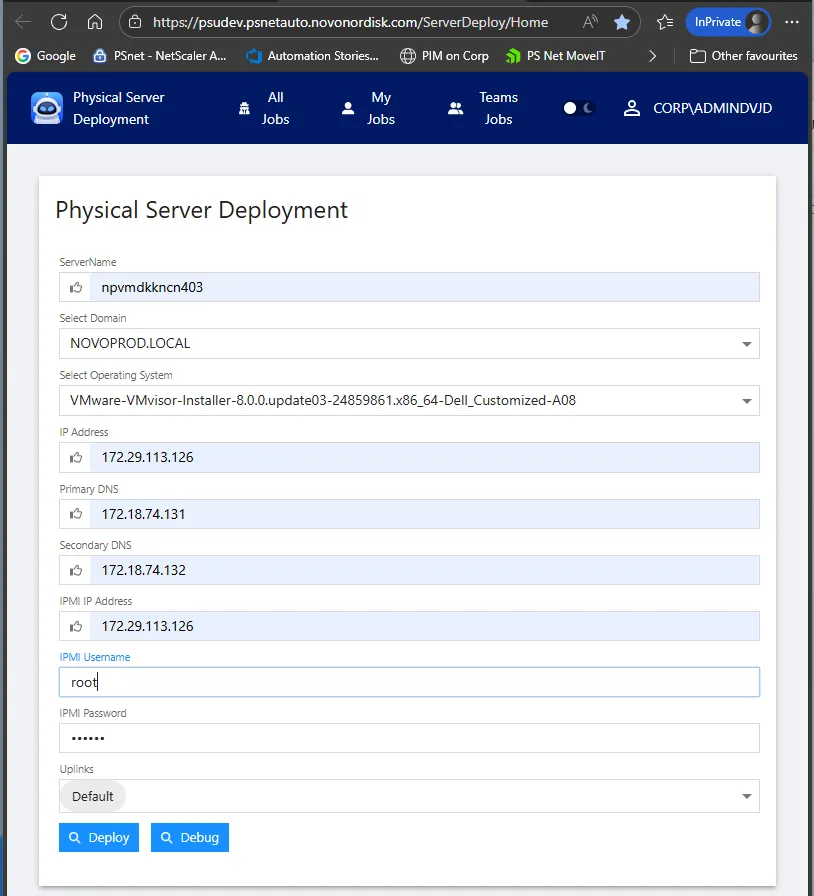
Section titled “How to Start a Physical Server Deployment”Type in Server Deployment information and hit “Deploy”
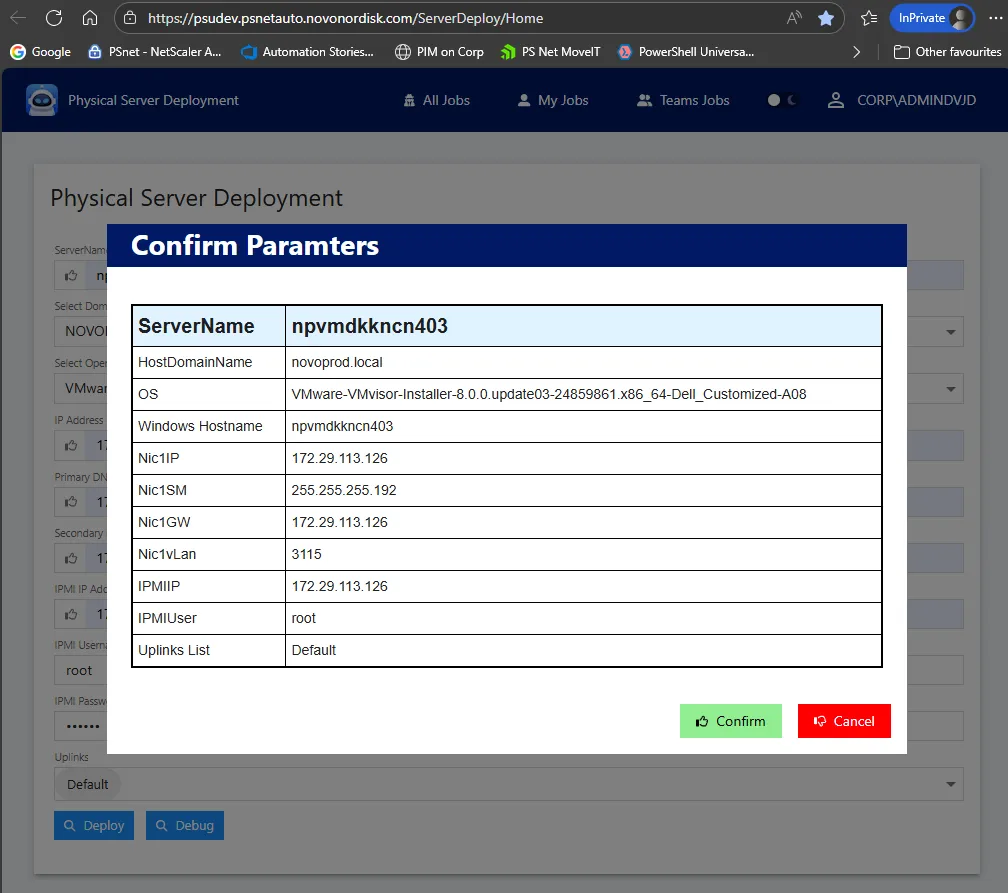
Verify the informations in the Confirm Parameters box
To start the deployment Press “Confirm”
To correct settings Press “Cancel”
 After you click “Confirm” the Deployment JOB will now be send to the deployment server and JOB will start in about 5 minutes
To See Deployment JOB status / LOG
Section titled “To See Deployment JOB status / LOG”To see JOB log Click “My Jobs”
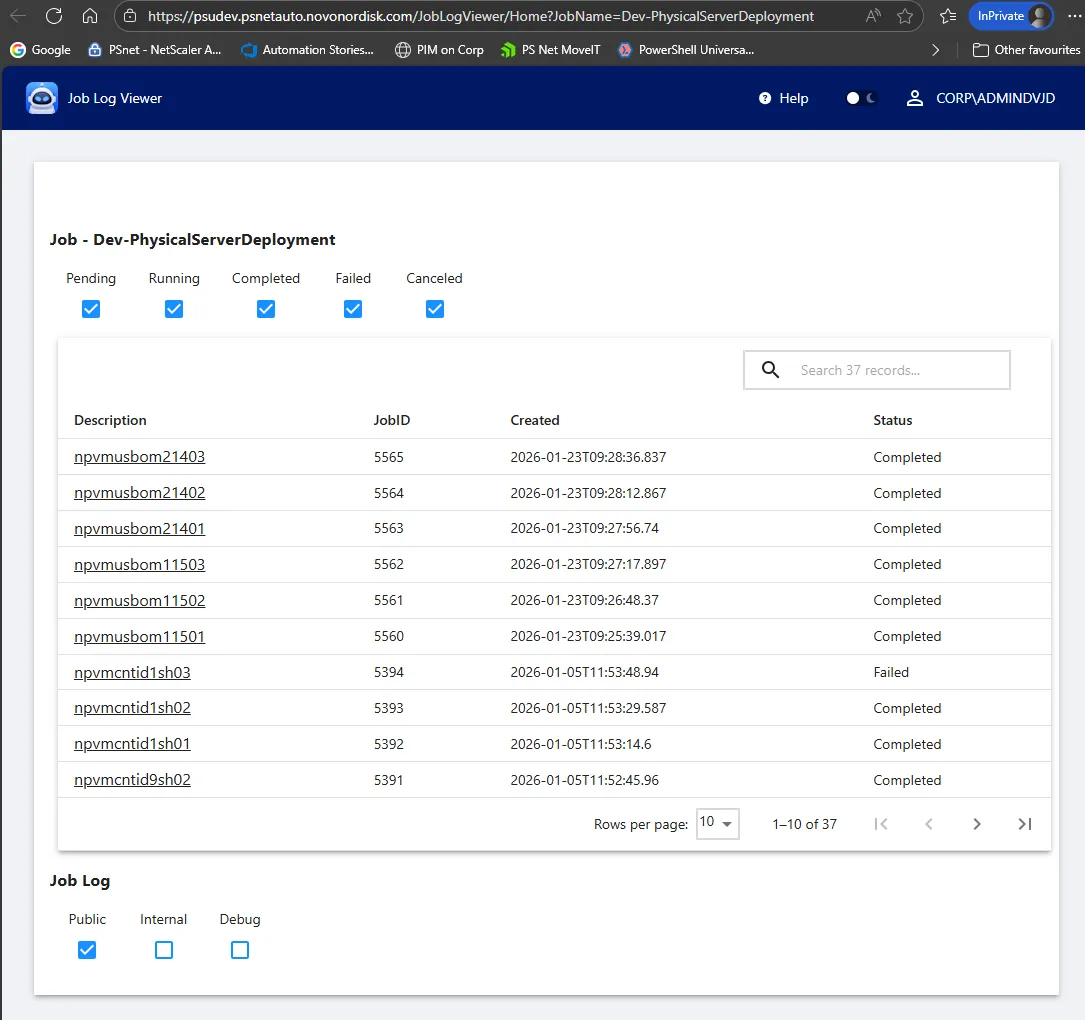
To see Job Details / Log Informations, Click the “Description” link of JOB you want to see
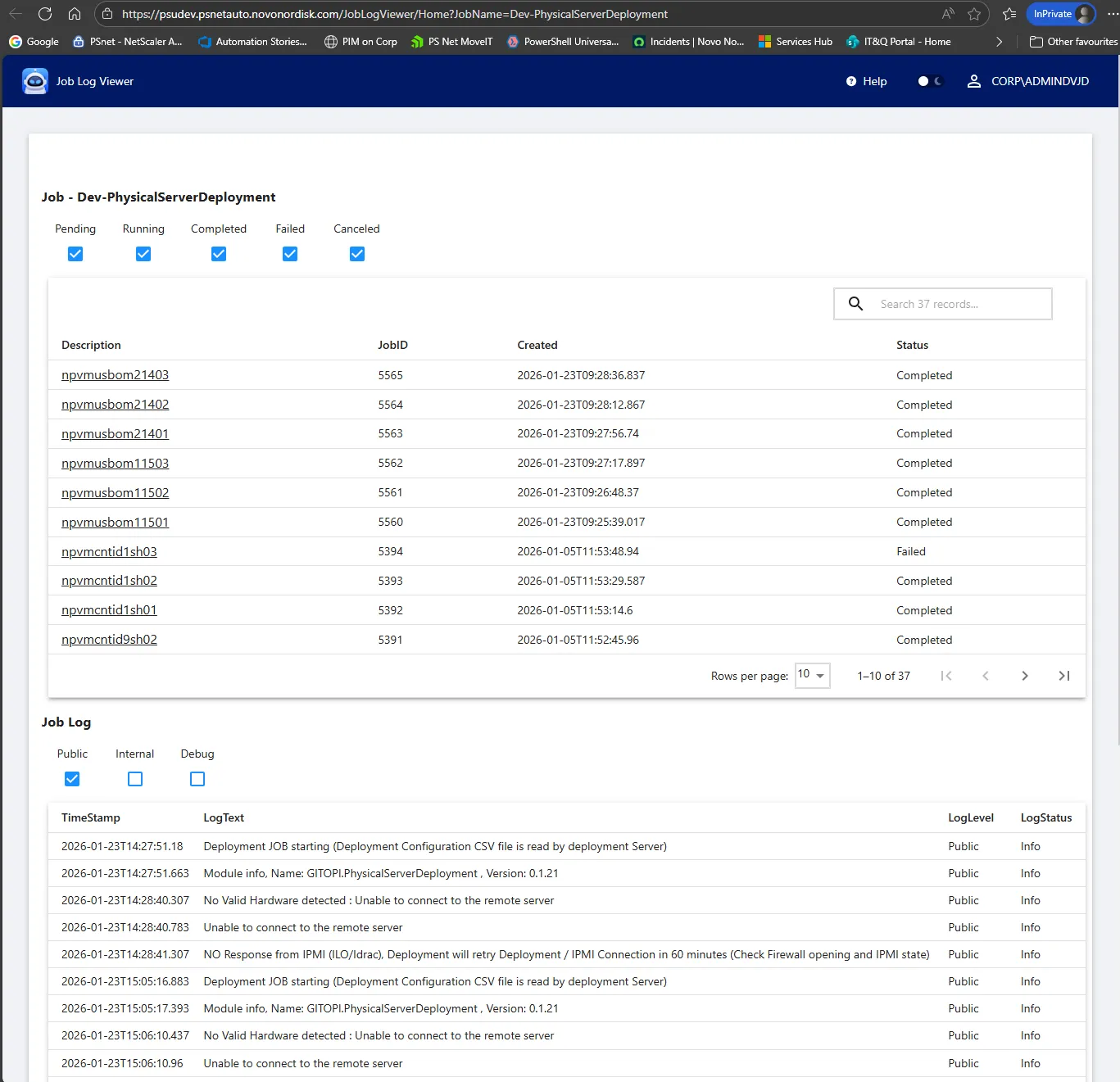
You can select level of details by selecting “Public”, “Internal” or “Debug” or any combination of them.
Stop / Terminate a deployment JOB
Section titled “Stop / Terminate a deployment JOB”Run the App “Terminate Job”
Select the JOB to Stop/ Terminate / Cancle , and click “Delete”
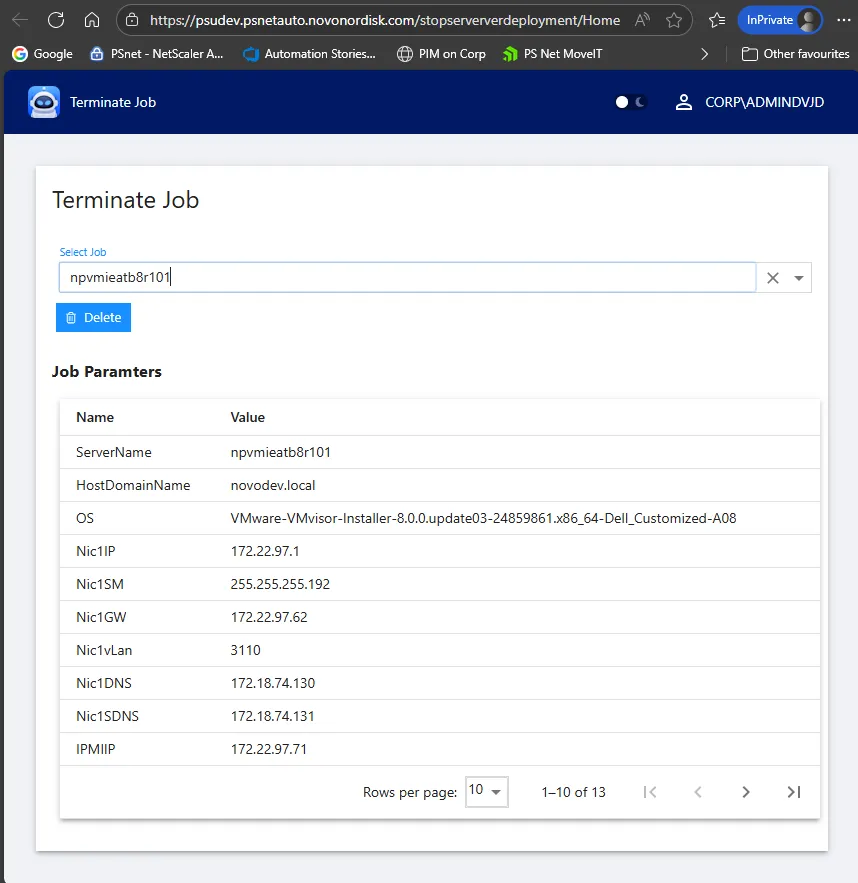
Note : Due to the design of deployment jobs, Job might not stop instantly, it will not stop in the middle of a “stage” , so Stopping a job can take some time (up to 10 minutes), depending on what state the Job is in.
Add a new Operation System to deployment solution
Section titled “Add a new Operation System to deployment solution”This is a task for Automation team, Contact us and we will do this We will need the Operation System .ISO file, and some basic information to do this (and in some cases a server to test the new Operation system deployment)